Quick start
From a fresh install to a cluster you can work in. No in-cluster agent, no extra credentials — kdashboard uses the kubeconfig you already have.
Before you start
- Install kdashboard.
- Have a kubeconfig at
~/.kube/configwith at least one context you can reach. Ifkubectl get podsworks in your terminal, kdashboard will work too — including contexts that log in throughaws,gcloud,azorkubelogin.
kdashboard talks to the API server with your credentials and honours your RBAC. It installs nothing in the cluster, and nothing is written to it until you ask.
1. Launch and pick a context
kdashboard opens on the Pods table of your current context. Every context in your kubeconfig is a tile in the rail on the far left; click one to switch.
Your kubeconfig lives somewhere else, or you were sent one? Open Settings (⌘,) → Kubernetes to point at another file or import contexts.
If you see Cluster connection lost instead of a table, kdashboard could not reach the API server. See Troubleshooting.
2. Pick a namespace
The namespace picker sits next to the table title. It lists the namespaces you are allowed to read; All namespaces is the first entry.
3. Look around
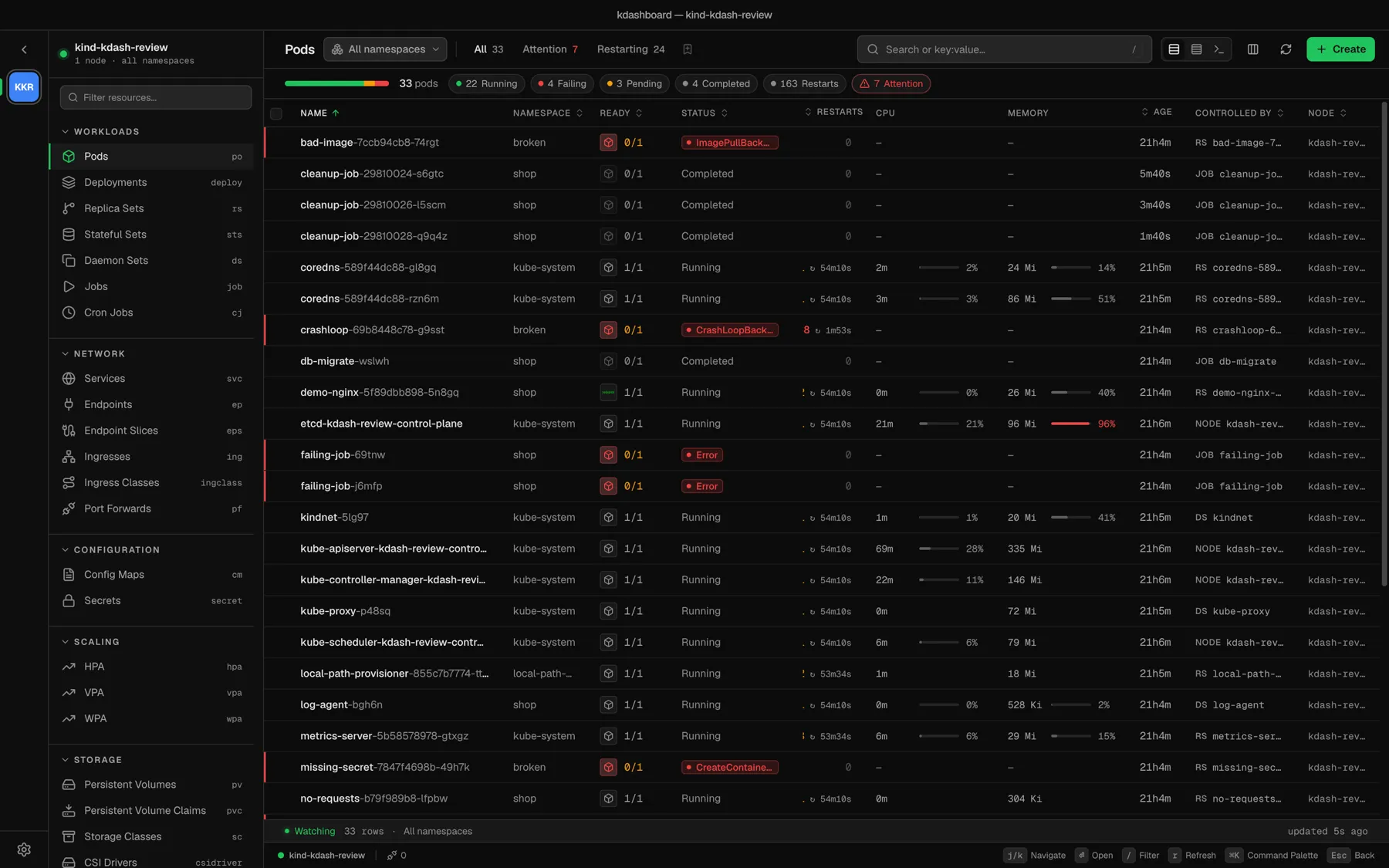
- The sidebar lists every kind, grouped as Workloads, Network, Configuration, Scaling, Storage, RBAC, Policy and Cluster. Your CRDs follow, one section per API group.
- Click a row to preview the resource beside the table. Double-click it to open it in its own tab.
- Right-click a row for everything you can do with it: logs, shell, edit, scale, restart, delete…
- Type in the search box to filter.
restarts:>3,status:!runningandns:prodare filters too — see Resource tables.
4. Learn one shortcut
Press ⌘K (Ctrl+K on Linux and Windows) for the command palette. Type a name to find a resource anywhere in the cluster, a kind to jump to its table, a context or namespace to switch to it, or an action to run it on the selected resource.
The status bar always shows the keys that work in the current view. The full list is in Keyboard shortcuts.
5. Find out what is broken
Open Cluster → Problems in the sidebar. It lists every workload, pod, volume and service that needs attention, with a cause and a next step for each. Overview, Problems and alerts explains how to read it.
Optional extras
None of these is required. Each one lights up part of the app.
| Add | To get |
|---|---|
| metrics-server in the cluster | Live CPU and memory in the Pods and Nodes tables, top consumers, cost from real usage |
| A Prometheus URL in Settings | An hour of usage history in pod details, and seven-day P95 rightsizing |
| trivy or grype on your machine | Image vulnerabilities in the Security view |
| Claude Code or Codex CLI on your machine | The AI agent panel |