Editing and actions
Edit Kubernetes YAML with schema linting and local history, create resources from templates, and scale, restart, roll back, drain, compare and delete.
How changes are applied
Everything you change from kdashboard — the YAML editor, Create, Quick Edit, a rightsizing recommendation — is sent as a server-side apply with the field manager kdashboard, and conflicts are forced: if another manager owns a field you edited, your value wins. There is no conflict prompt.
If the resource is managed by Helm, Argo CD, Flux or a similar tool, change it at the source instead. Otherwise the next sync will revert your edit.
Edit YAML
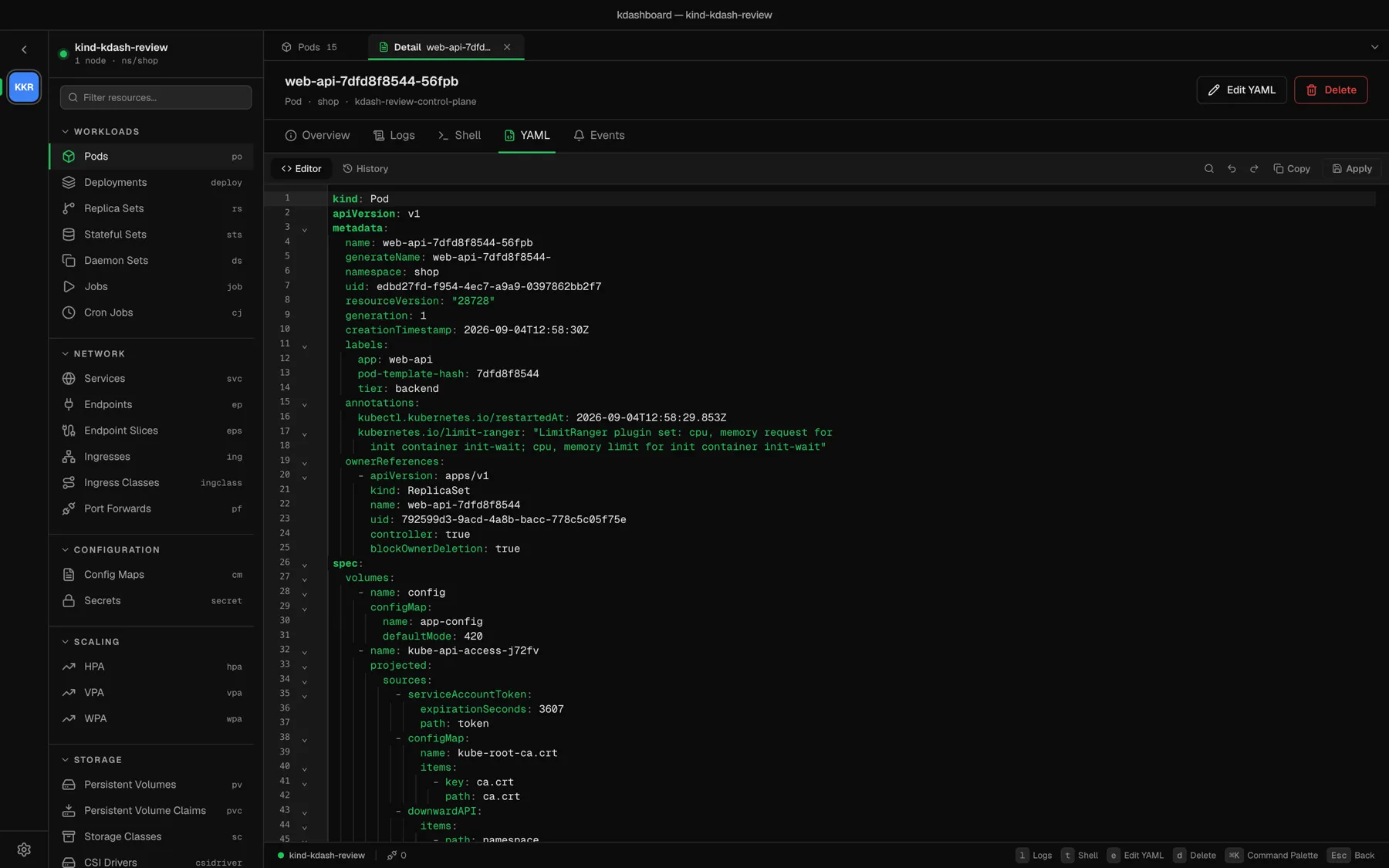
Press e in a detail, choose Edit YAML in the row menu, or click the YAML tab.
- The manifest is checked against the cluster’s own OpenAPI schema as you type. Problems are counted in the toolbar; click the counter or press F8 to list them.
- Apply is disabled while there are errors. Warnings do not block it.
- The gutter marks what you changed: green for added lines, accent for modified ones, a red edge where lines were removed. A MODIFIED badge shows while there are unapplied changes, and Reset discards them.
- ⌘F searches; ⌘Z and ⌘⇧Z undo and redo. Blocks can be folded from the gutter.
Click Apply to send it. A failure is shown at the top of the editor with the API server’s message, and your text stays as it was. Live updates of the resource do not overwrite what you are typing.
History
The History tab keeps the version that was loaded and every version you applied during this session, up to twenty. Select one to see a side-by-side diff against the version before it. Restore puts it back in the editor — it is not applied until you click Apply.
The history is kept in memory and is gone when you close the resource.
Create resources
Click Create in a table’s toolbar, or right-click the empty part of a table → Create from YAML…
- Write a manifest, Paste from clipboard, or Insert template… for a minimal Deployment, Service, ConfigMap, Secret, Job, CronJob, Ingress or Namespace. Each template is added as another
---document. - A manifest with no
metadata.namespacegoes into the namespace the table is showing. On All namespaces, an Apply into picker asks where. - Under the editor, a line per document tells you what will be created and where —
Deployment web → namespace shop— before anything is sent. - Apply to cluster (⌘⏎) applies the documents in order. If one fails, the dialog stays open with your draft and tells you which one.
Closing the dialog with text in it asks before discarding it.
Quick Edit
Quick Edit… in the row menu changes the three things people change most, without opening the YAML: per container, the image, the environment variables and the requests and limits.
Variables that take their value from a ConfigMap, a Secret or a field reference are shown locked; edit those in the YAML. Review changes lists every change and the exact manifest that will be sent. Apply sends it, and the controller rolls the pods.
Scale
s in a detail, or Scale Replicas… — for Deployments, StatefulSets and ReplicaSets. Set the count with − and +; the dialog shows the current and the new value.
If a HorizontalPodAutoscaler targets the workload, the dialog warns you: the autoscaler will overwrite a manual scale at its next sync.
Restart
Restart — for Deployments, StatefulSets and DaemonSets — triggers a rolling restart, the same one kubectl rollout restart does. It asks for confirmation. It works on a multiple selection too.
Roll back a Deployment
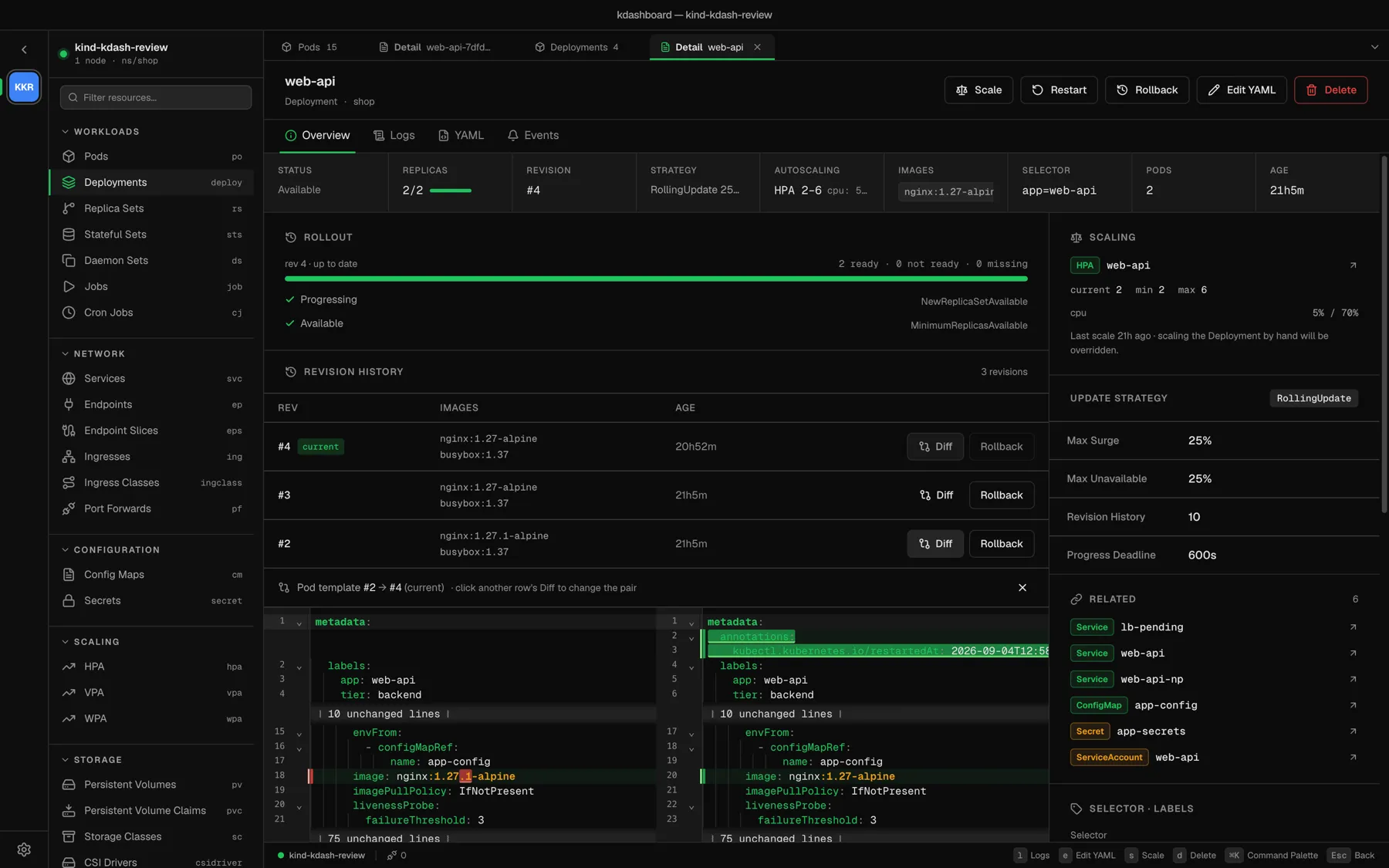
A Deployment’s detail has a Revision history card. Click Diff on a revision to compare its pod template with the current one; click a second revision to compare the two with each other.
Rollback — in the card, the header or the row menu — tells you which revision it will return to (Roll back to #12) before it does anything. With no earlier revision, it says so.
CronJobs and Jobs
| Action | Effect |
|---|---|
| Trigger Now | Creates a Job from the CronJob’s template right away |
| Suspend / Resume | Stops and restarts scheduling |
| Re-run (on a Job) | Creates a new Job with the same spec |
These apply immediately, without a confirmation.
Nodes
- Cordon / Uncordon stop and allow scheduling on the node.
- Drain… cordons the node, then evicts its pods through the Eviction API — so PodDisruptionBudgets are respected, and the dialog waits for them. Three options:
| Option | Default | Meaning |
|---|---|---|
| Ignore DaemonSets | on | DaemonSet pods stay; they would be recreated on the node at once anyway |
| Delete emptyDir data | off | Also evict pods that use emptyDir volumes. That data is lost. |
| Force | off | Also evict pods that no controller owns. Nothing recreates them. |
Progress is shown pod by pod, and anything that could not be evicted is listed at the end.
- Node Shell is described in Shell and debug containers.
Compare with another namespace or context
Compare Across Namespaces / Contexts… in the row menu puts a resource side by side with its sibling elsewhere: the same Deployment in staging and production, or in two clusters.
Pick the target context, the namespace and the name — they default to the same name — and click Compare. Both manifests are fetched and diffed; nothing is modified. Cluster-scoped resources can only be compared across contexts.
Other actions
- Open in Browser — for Services and Ingresses that have an external address or an active port-forward.
- Copy Name, Copy Namespace, Copy as YAML, Copy as JSON.
- View Topology — see Topology.
- Watch for Alerts — see Alerts.
- Pin to Sidebar — see Finding your way around.
Delete
d in a detail, or Delete in the row menu. kdashboard always asks first, and names what it is about to delete.
The delete is sent with the UID of the object you were looking at. If someone replaced it with a new object of the same name in the meantime, the delete fails rather than hit the wrong one. There are no force or grace-period options; the resource’s own grace period applies.