Logs
Stream the logs of a pod, all its containers, or every pod of a Deployment, with level filters, a time window, regex search and a JSON detail view.
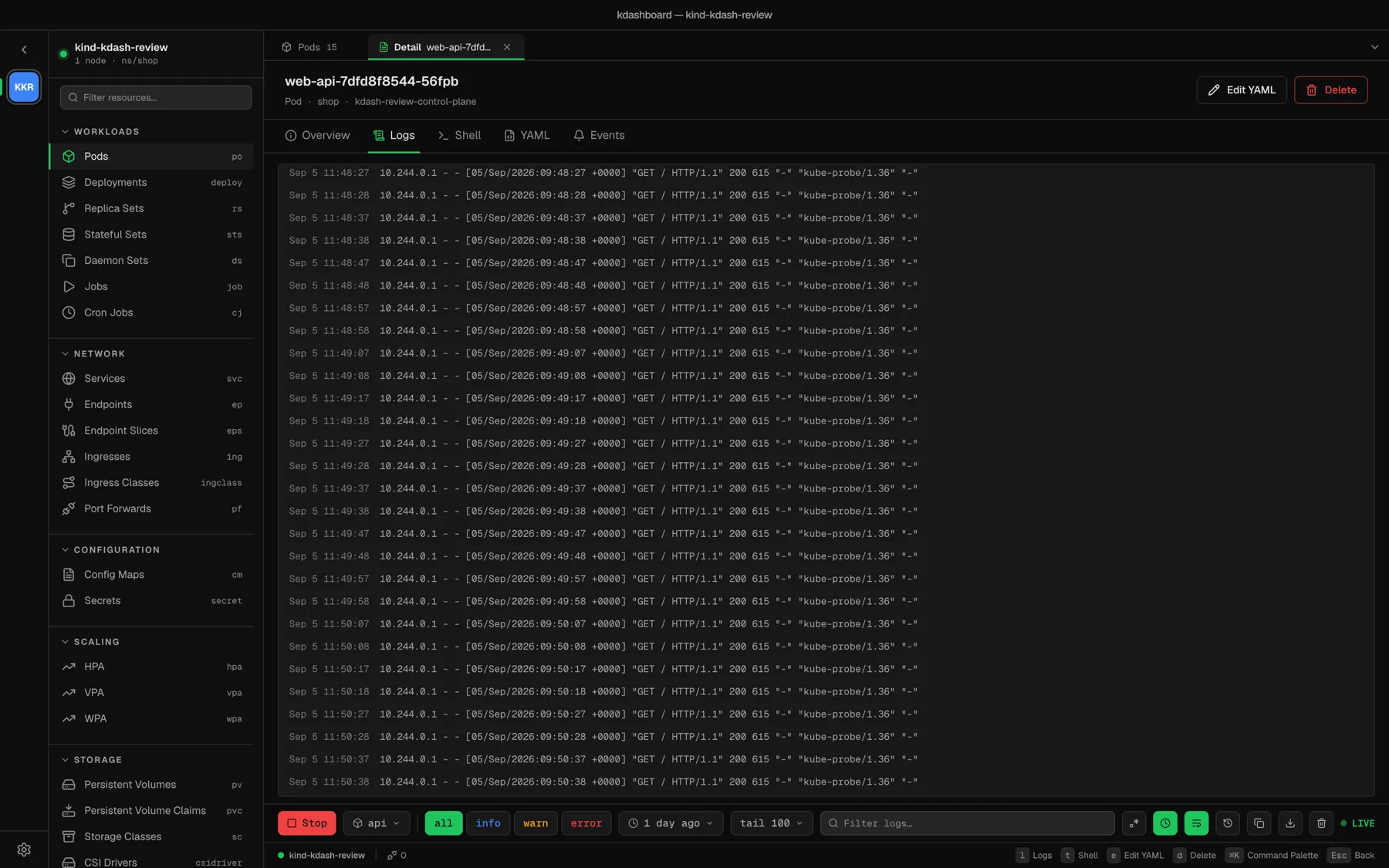
Open the logs
On a pod or a Deployment: press l in its detail, ⌘L from anywhere, choose View Logs in the row menu, or click the Logs tab. Streaming starts as soon as a container is known.
- A pod with several containers — pick one in the container selector, or All containers to interleave them. Each line is then prefixed with its container.
- A Deployment — kdashboard streams every pod behind it at once, and each line carries the pod it came from. Use the Pod selector to narrow down to one.
The controls
All controls are in the bar at the bottom of the panel.
| Control | What it does |
|---|---|
| Stream / Stop | Starts and stops the stream. The badge at the far right reads CONNECTING, then LIVE. |
| Container | Which container to read |
all info warn error | Keep only lines of that level. info also keeps lines that declare no level. |
| Since | How far back to start: 5 or 15 minutes, 1 or 6 hours, 1, 3 or 7 days. Default: 1 day. |
| Tail | How many lines to load and keep on screen: 100, 500, 1000 or 5000. Default: 100. |
| Filter logs… | Keep only the lines that contain the text |
| Regex filter | Treat the filter text as a regular expression |
| Timestamps | Show or hide the timestamp column |
| Wrap lines | Wrap long lines instead of scrolling sideways. Remembered on this machine. |
| Previous container logs | Read the previous instance of the container — what kubectl logs --previous shows. Use it after a crash. |
| Copy logs | Copy the lines on screen, after filters |
| Download logs | Save the lines on screen to a file |
| Analyze with the AI agent | Hands the agent this pod and container together with your filter, level and previous setting |
| Clear logs | Empty the view. The stream keeps going. |
Changing the container, Since, Tail or Previous restarts the stream. Filters and levels apply to what is already loaded.
Read a line
Each line shows its pod (when there are several), its timestamp, its level and the message. A line that declares no level gets no badge — kdashboard does not guess.
Click a line to open it in a side sheet. JSON lines are pretty-printed and highlighted there; everything else is shown in full. With the sheet open, ↑ and ↓ step through the lines. Copy copies the line.
Scroll up and the view stops following the stream; Jump to bottom takes you back to the tail.
Limits
- The view keeps the last Tail lines. Raise Tail to look further back; use Download logs to keep a copy.
- A single line is cut at 512 KiB.
- One log stream runs at a time. Opening the logs of another resource stops the previous stream.
When nothing shows up
| Message | Meaning |
|---|---|
| Connected — waiting for output. Nothing logged in the last <window>. | The stream is fine; the container is quiet. Widen Since. |
| No logs match the current search. | The filter or the level hides everything |
| This deployment has no running pods to stream. | Nothing to read — check the rollout |
| Log stream ended. | The container stopped. Turn on Previous container logs to read what it said before it died. |